If you want to make money online : Register now


Data TypeDefault Value (for fields)
byte0
short0
int0
long0L
float0.0f
double0.0d
char‘u0000’
String (or any object)null
booleanfalse

Live Example : Default value of Data Type

Sample Program that will illustrate Default Value Stored in Each Primitive Data Type Variable
public class DefaultValue {
static boolean bool;
static byte by;
static char ch;
static double d;
static float f;
static int i;
static long l;
static short sh;
static String str;

public static void main(String[] args) {
System.out.println("Bool :" + bool);
System.out.println("Byte :" + by);
System.out.println("Character:" + ch);
System.out.println("Double :" + d);
System.out.println("Float :" + f);
System.out.println("Integer :" + i);
System.out.println("Long :" + l);
System.out.println("Short :" + sh);
System.out.println("String :" + str);
}
}

Output :

Bool     :false
Byte :0
Character:
Double :0.0
Float :0.0
Integer :0
Long :0
Short :0
String :null
  1. Variable names are case-sensitive.
  2. A variable’s name can be any legal identifier.
  3. It can contain Unicode letter,Digits and Two Special Characters such as Underscore and dollar Sign.
  4. Length of Variable name can be any number.
  5. Its necessary to use Alphabet at the start (however we can use underscore , but do not use it )
  6. Some auto generated variables may contain ‘$‘ sign. But try to avoid using Dollar Sign.
  7. White space is not permitted.
  8. Special Characters are not allowed.
  9. Digit at start is not allowed.
  10. Subsequent characters may be letters, digits, dollar signs, or underscore characters.
  11. Variable name must not be a keyword or reserved word.

Data type is nothing but the type of the data. Each Variable in Java must have certain type associated with it which tells us what kind of data a variable can store.

Data Types in Java Programming Language are classified into two main groups – Primitive and Reference Data Types.

A primitive Data Types are :

  1. Data types are predefined by the Java language.
  2. Predefined data types are Reserved keyword so we cannot use them as variable name inside program/application
  3. Primitive values do not share state with other primitive values.
  4. Total Number of Primitive Data Types in Java Programming is 8
  5. All Primitive Data Types have respective Wrapper Classes i.e Integer is wrapper class for primitive type int

Primitive Data Types are –

Primitive Data Types in Java :
booleancharbyteint
shortlongfloatdouble

Classification of Data Types in Java Programming Language

Data Types in Java Programming Language

Data Type and Other Details

TypeContainsDefaultSize
booleantrue or falsefalse1 bit
charUnicode Characteru000016 bits
byteSigned Integer08 bits
shortSigned Integer016 bits
intSigned Integer032 bits
longSigned Integer064 bits
floatFloating Number0.032 bit
doubleFloating Number0.064 bit

Step 1 : Checking Directory Structure

  1. After installing JDK , Restart system.
  2. Open My Computer and Check Java Installation Directory.
Checking Java Installation Directory Structure
  1. These two folders gets created inside “My Computer => C Drive => Program File => Java“.
  2. Check Inside JDK folder and look for “java” , “javac” application files.
Java Bin Directory
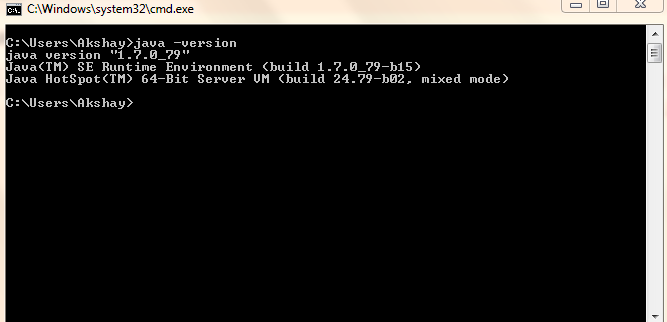
  1. If these files are present then 75% we are on right track. Now Let’s Check whether “javac” is working properly or not.
  2. Type command in cmd java -version 

Step 2 : Writing Sample Hello.java Program

  1. Create “code” folder inside C Drive. (call it as – hello.java)
  2. Copy paste following code snippet and paste into notepad. (Dont forgot to save File using .java extenstion) .
class hello
{
public static void main(String args[])
{
System.out.println("Welcome to Java");
}
}
  1. Note : Select File Type as All files.
Saving Java file
  1. Now open Command Prompt.
  2. Type following Commands.
C:>java -version //for checking version of java
C:>javac -version //checking compiler version
C:>cd code
C:code>javac hello.java
C:code>java hello
Welcome to Java
C:code>
Normally run the downloaded file and follow the step and use appropriate path.
1. Select Path
2.Complete the Installation

or copy the JRE/JDK directory in your drive, C: or D:

and run using Command Promt.
  1. Go to the Java SE Downloads Page.
  2. Scroll down a tad look for the main table with the header of "Java Platform, Standard Edition"
  3. Click the JRE Download Button (JRE is the runtime component. JDK is the developer's kit).
  4. Select the appropriate download (all platforms and 32/64 bit downloads are listed)
In Windows inorder to set
Step 1 : Right Click on MyComputer and click on properties .
Step 2 : Click on Advanced tab

alt text

Step 3: Click on Environment Variables
alt text
Step 4: Create a new class path for JAVA_HOME
alt text
Step 5: Enter the Variable name as JAVA_HOME and the value to your jdk bin path ie c:\Programfiles\Java\jdk-1.6\bin and
NOTE Make sure u start with .; in the Value so that it doesn't corrupt the other environment variables which is already set.
alt text
Step 6 : Follow the Above step and edit the Path in System Variables add the following ;c:\Programfiles\Java\jdk-1.6\bin in the value column.
Step 7 :Your are done setting up your environment variables for your Java , In order to test it go to command prompt and type